

Receipt capture & bank reconciliation
Receipt Capture and Bank Reconciliation Without the Backlog
Receipts are the smallest documents in the workflow and the biggest source of friction. Here is how capture, categorization, and reconciliation clear the pre-accounting pile.
The work before the ledger
What pre-accounting covers
Pre-accounting is the work that happens before a transaction reaches the general ledger. It includes capturing the document, extracting the details, categorizing the expense, and attaching the receipt to the transaction. It is the least visible part of bookkeeping and the one that eats the most time.
When people say their books are behind, they usually mean pre-accounting is behind. Fixing it does not require a full accounting overhaul. It requires a defined place for documents to land, a routine for clearing them, and a clear owner for the exceptions. Everything else in this guide builds on those three.
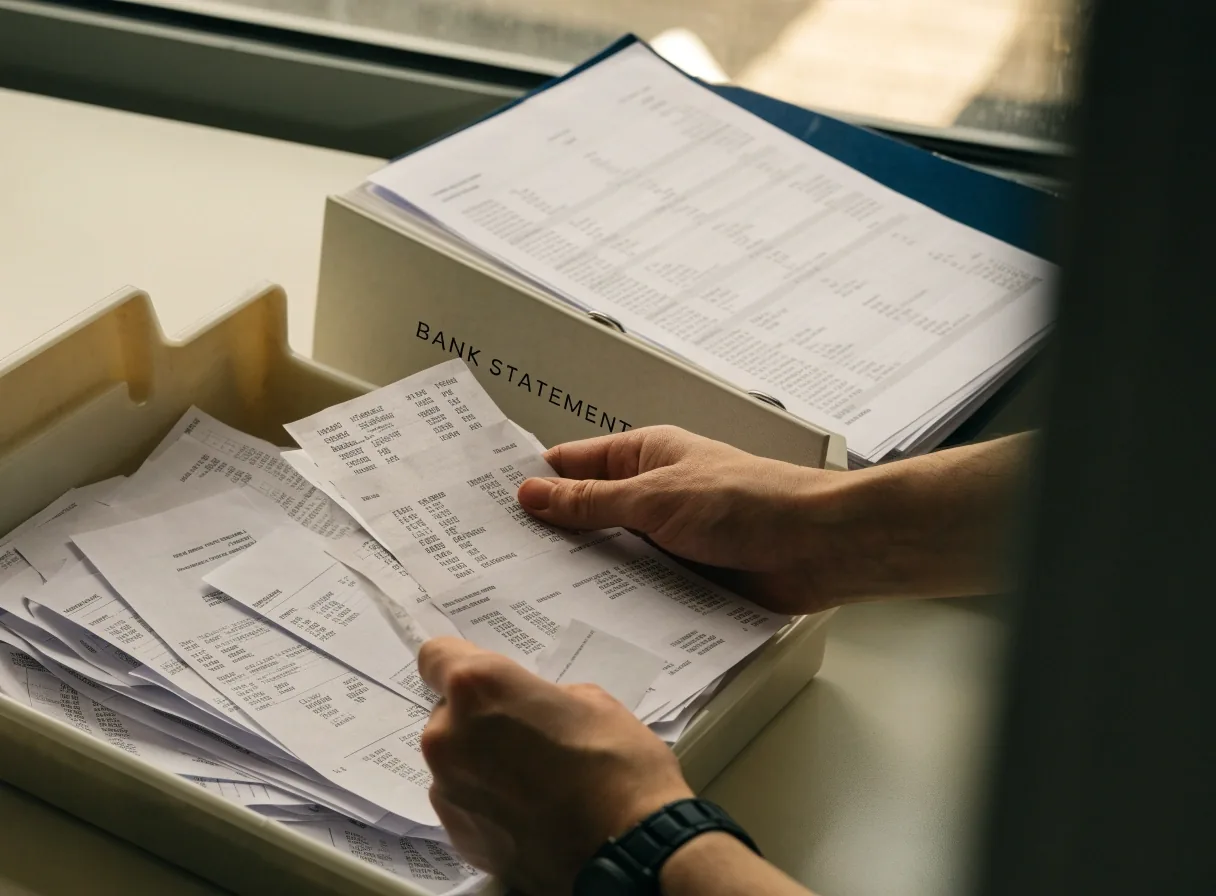
From photo to coded transaction
How receipt capture works, step by step
A capture tool lets an employee photograph a receipt or forward an emailed one. Software reads the vendor, amount, date, and tax, then stores the image alongside the extracted data. The transaction gets matched to a card charge or a bank payment, and the receipt stays attached for reference. The stages below are the ones a working routine has to cover, whatever tool you choose.
Capture the document
An employee photographs the receipt at the counter, or forwards an emailed invoice to a shared address the capture tool watches. The image lands in one defined place instead of a pocket, a glovebox, or a personal inbox.
Read the vendor, amount, date, and tax
The tool extracts the fields a bookkeeper needs. Quality varies by input: a clean printed receipt with a clear total is easy, a faded thermal slip from a parking garage is not. Tools that handle hard cases gracefully, and flag what they cannot read, save more time than tools that only work on easy inputs.
Store the image with the data
The photo is kept beside the extracted fields, so the record and its evidence never separate. This is what makes a later question answerable in a click rather than a search through email threads.
Match it to a card charge or bank payment
The captured receipt is paired with the transaction it belongs to, so nothing sits unattached in the feed. Matching is where most of the manual saving happens, and where split charges cause trouble.
Code the account and clear the review
Categorization assigns the expense to an account and a reviewer confirms or corrects it. Once confirmed, the item leaves the queue and the books move one transaction closer to current.
Categorization
Categorization and the review step
Automation suggests the account based on the vendor and the amount, and the suggestions improve as the tool sees more of your history. They are good for repeat vendors and less reliable for one-off purchases. A client dinner and a team lunch look the same to software, so someone has to review and correct, and the tool has to make that correction quick.
The test is simple: if fixing a suggestion takes longer than entering the expense by hand, the workflow is not earning its setup. Good categorization learns from your corrections and keeps the correction itself to a single step.
What a review pass should cover
- Repeat vendors
- Confirm the suggested account quickly. These are the items automation should handle without much attention.
- Mixed-purpose purchases
- Meals, travel, and supplies that could belong to more than one account need a person to decide and a note to explain.
- Personal spending on a business card
- Flag and reclassify rather than coding it as a business expense and unwinding it at year end.
- Items with no receipt
- Ask for documentation at review time, while the person who made the purchase still remembers it.

Matching
Matching receipts to transactions
Once receipts are captured and transactions are in the bank feed, they need to be paired. This is where automation earns its keep, because matching is a repetitive comparison. A coffee shop charge matches a coffee shop receipt, cleanly.
Split charges are the real test. A hotel stay might produce a room charge on the corporate card, a separate parking charge on the same statement, and a minibar item the traveler paid in cash. Simple one-to-one matching breaks on that. Tools that handle split matches and partial matches cut the manual review; tools that do not leave you reconciling by hand, which is the problem you were trying to solve.
See how AP automation handles invoicesReconciliation
Bank reconciliation and why it matters
Reconciliation confirms that your records match the bank's. It catches errors, missing transactions, and fraud. Without it, the books are a best guess. The process starts with the bank feed and works through unmatched items until the adjusted balances agree.
Import the bank feed
Transactions arrive automatically from the connected accounts, so nothing depends on someone typing a statement by hand.
Clear the matched items
Receipts that already match their transactions clear quickly, which is most of the month once capture is running properly.
Work the unmatched list
Every remaining item gets a decision: a missing receipt, a timing difference, a duplicate, or a genuine error. This is the part that needs a person.
Confirm the adjusted balance
The reconciliation is finished when the adjusted bank balance and the book balance agree. If they do not, the difference is the next thing to chase.
Automation speeds up the repetitive part. What it does not do is decide whether an unmatched item is a timing difference or a mistake. That is a judgment call, and it is the reason reconciliation stays on the close checklist even when the capture workflow runs well.
Handling exceptions
Exceptions are the transactions that do not match cleanly: a duplicate charge, a refund, a payment that posted twice, a deposit that does not correspond to an invoice. These are the items that decide whether a reconciliation takes twenty minutes or two days.
How to keep exceptions from stalling the close
- Flag the item the day it appears and come back to it, so the rest of the reconciliation keeps moving.
- Give each flag a short reason and an owner. An unexplained flag is only slightly better than no flag.
- Resolve duplicates and refunds while the statement period is still open, not during the month-end rush.
- Reconcile around nothing. Leaving exceptions in the feed and working past them means they never resolve themselves.
Records
Document retention and audit trail
Receipts and invoices are records, and they need to be kept. The IRS generally expects supporting documentation for deductions, and a bank statement alone does not prove what a charge was for. Digital capture helps here, because the image is stored with the transaction and can be pulled up years later.
A useful audit trail shows four things for every entry: the document itself, the coding, the approval if one was required, and the date it was recorded. When a question comes up, whether from an accountant or an auditor, the answer should be a click away rather than a search through a shared inbox. That standard is worth setting before the first review, not after.
Choosing a tool
Tools that fit different sizes
A solopreneur can run on a phone app that captures receipts and syncs to a basic accounting platform. QuickBooks Self-Employed is built for that scale, with simplified income, expense, and tax-prep workflows. A service business with a few employees might use FreshBooks, where invoicing and time tracking are central and expense tracking supports the client billing. A business with field staff or heavy travel needs capture that works offline and handles volume. The tool should match how receipts actually arrive, not how you wish they did.
Compare receipt capture approachesMatch the tool to the volume
- Solo owner
- A phone-first app that syncs to simple books. Low setup, one person capturing everything.
- Small service team
- Expense capture that feeds client billing, with invoicing and time tracking in the same place.
- Field staff and travel
- Offline capture, higher volume, and a review queue that someone actually clears each week.


Routine
Setting up a capture routine
The routine matters more than the tool. Decide where receipts go: a dedicated app, a shared inbox, or a folder the capture tool watches. Set an expectation that receipts get submitted within a week, not at month-end. Give employees a way to capture without friction, because any extra step means receipts get lost. Review captured items weekly so categorization stays current.
A routine that runs on a schedule beats a better tool used inconsistently. Write the routine down, name the owner, and check the queue every Friday.
A weekly capture routine that holds
- Mon Remind the team to submit the previous week's receipts. A short message is enough.
- Wed Clear the capture queue and fix any extracted fields the tool flagged as unreadable.
- Thu Review and correct suggested categories while the purchases are still recent.
- Fri Match receipts to bank and card transactions and flag anything that will not pair cleanly.
- Monthly Reconcile the accounts with the queue already clear, so only exceptions remain.
Where manual work still belongs
Not everything should be automated. An unusual expense, a large purchase, or a transaction with no documentation needs a person to look at it. Cash transactions often need manual entry because there is no feed to match against. International charges with currency conversion need review, because the amount in the bank feed will not match the receipt once the exchange rate is applied.
Automation handles the routine; people handle the exceptions. Knowing which is which keeps the workflow honest and the books accurate. A tool that hides its exceptions behind a clean summary is worse than one that shows you exactly what it could not finish.
Common questions
Questions we hear about capture and reconciliation
Does receipt capture replace bank reconciliation?
No. Capture gathers and reads the documents; reconciliation is the separate check that your records agree with the bank. Capture makes reconciliation faster because most items arrive already matched, but the reconciliation step still has to happen and still has to be signed off.
What happens when a receipt is unreadable?
The good tools flag it rather than guessing. The item stays in the queue with the image attached so a person can key the amount from the photo. A faded thermal receipt or a photographed credit slip usually needs that treatment, and it is a small cost compared with an incorrectly coded expense.
How long should we keep receipts and invoices?
Retention rules depend on the record type and on your situation, and the IRS publishes the periods it expects. The practical point for a capture workflow is that the image and its coding live together in the system, so whatever period applies, retrieving the document does not depend on anyone's inbox. Confirm the specific period with your accountant.
Can we start with one account and expand later?
Yes, and it is usually the better way to start. Run capture and reconciliation on the busiest account first, prove the routine holds through one full cycle, then add accounts. Expanding before the routine is stable tends to move the backlog rather than clear it.
Where does the month-end close fit in?
Capture and reconciliation sit upstream of the close. If both run on a weekly rhythm, the close starts with a mostly cleared queue and the remaining work is the exceptions plus the review steps that need judgment.
Have a reconciliation question that is not covered here?
Send it over with a short description of how receipts reach your books today. We answer questions about capture tools, matching rules, and month-end cleanup by email during business hours, and we will point you to the guide that fits.
PaperlessFin
1221 Financial District Blvd, Floor 14
New York, NY 10005, USA
Monday–Friday: 9:00 AM – 6:00 PM